
Quick Answer: How to Send Large Files Securely
The most secure way to share large files is to use a purpose-built secure file sharing platform with AES-256 encryption, multi-factor authentication, granular access controls, audit logs, and compliance certifications (SOC 2 Type II, HIPAA, GDPR, PIPEDA). Although email, free cloud drives (Google Drive, Dropbox, WeTransfer), and USB drives are convenient, they lack the encryption, expiry controls, and audit trails that regulated industries such as legal, accounting, healthcare, financial services, and government require. For business users in the U.S. and Canada in 2026, TitanFile, Kiteworks, and ShareFile remain the top-rated options for high-security, compliant large file transfer.
In today’s digital workplace, the need to securely share large files has never been greater or riskier. For example, whether you are a lawyer sending eDiscovery files, an accountant exchanging tax workpapers, a healthcare provider transferring patient records, or a financial advisor delivering compliance reports, the wrong method of file transfer can trigger a data breach, regulatory penalty, or lost client.
The stakes are higher than ever:
- The IBM Cost of a Data Breach Report 2025 puts the global average breach cost at USD $4.44M, and the U.S. average at $10.22M, more than double the global figure.
- 97% of organizations that experienced an AI-related security incident lacked proper AI access controls, and 63% had no AI governance policies in place.
- Recent research found sensitive data now makes up roughly 34.8% of ChatGPT inputs, up from 11% in 2023.
- In Canada, proposed federal privacy reforms following Bill C-27 would carry penalties of up to C$25M or 5% of gross global revenue (whichever is greater) — exceeding GDPR’s 4% ceiling.
Clearly, traditional methods such as email attachments, USB drives, and free cloud links were never built for this environment. They lack end-to-end encryption, expiry, recipient verification, or audit logs. This guide walks through the best methods to securely share large files in 2026, compares them head-to-head, and helps you pick the right tool for your industry.
What “Secure” Actually Means When Sharing Large Files
Before comparing tools, it helps to know what a genuinely secure large file transfer looks like. A platform that lets you send a 10 GB folder is not the same as one that lets you send it securely and compliantly. Look for all of the following:
- Encryption in transit and at rest — AES-256 is the baseline; TLS 1.3 for transport.
- Multi-factor authentication (MFA) on both sender and recipient.
- Granular access controls — per-file expiry, download limits, view-only modes, watermarking.
- Audit trails — who opened the file, when, from where, and what they did.
- Compliance certifications — SOC 2 Type II, ISO 27001, HIPAA, GDPR, PIPEDA, and where applicable FedRAMP or CJIS.
- Data residency control — ability to keep files in U.S. or Canadian data centers.
- Recipient verification — confirming the person on the other end is the intended one.
- No third-party data harvesting — your files should not be used to train AI models or sold to advertisers.
In short, if a free file sharing service can’t tick most of these boxes, it doesn’t belong in a regulated workflow.
Common Ways People Send Large Files (and Where They Fall Short)
1. Email Attachments and Zip Folders
Email is still the default and the default is broken. Gmail and Outlook cap attachments at 25 MB, so people compress files into ZIPs or split them across multiple messages. Standard SMTP email is not end-to-end encrypted, leaving sensitive documents exposed in transit and indefinitely retained on multiple mail servers.
Pros: Universal, no setup.
Cons: Tiny size limits, no native encryption, no audit trail, no expiry, no recipient verification.
2. USB Drives and External Hard Drives
Useful only for offline transfers when both parties are physically present.
Pros: No size cap, works offline.
Cons: Easily lost or stolen, no encryption by default, cannot be revoked once handed over.
3. FTP (File Transfer Protocol)
A 1970s-era protocol still used in IT and engineering teams. Standard FTP transmits credentials and data in cleartext. SFTP and FTPS add encryption but require technical setup most non-IT staff can’t manage.
Pros: Handles very large files; mature tooling.
Cons: Plain FTP is insecure by default; complex to administer; poor user experience for clients; lacks per-file controls, expiry, or audit reports.
4. Consumer Cloud Storage (Google Drive, Dropbox, OneDrive)
Convenient for personal use, but free or basic plans rarely include enterprise-grade DLP, granular permissions, or detailed audit trails. Shared links can be forwarded indefinitely unless explicitly restricted.
Pros: Easy setup, generous free tiers, familiar interfaces.
Cons: Compliance gaps for HIPAA, PIPEDA, and most legal/financial regulations on free tiers; no recipient identity verification; data may sit in a jurisdiction you don’t control.
The 10 Best Ways to Securely Share Large Files in 2026
1. TitanFile
TitanFile is an award-winning secure file sharing and client collaboration platform trusted by 500,000+ professionals in legal, accounting, healthcare, government, and financial services. It is designed to feel as simple as email while providing the encryption, audit trails, and compliance certifications regulated industries require.
How to Send Large Files Using TitanFile
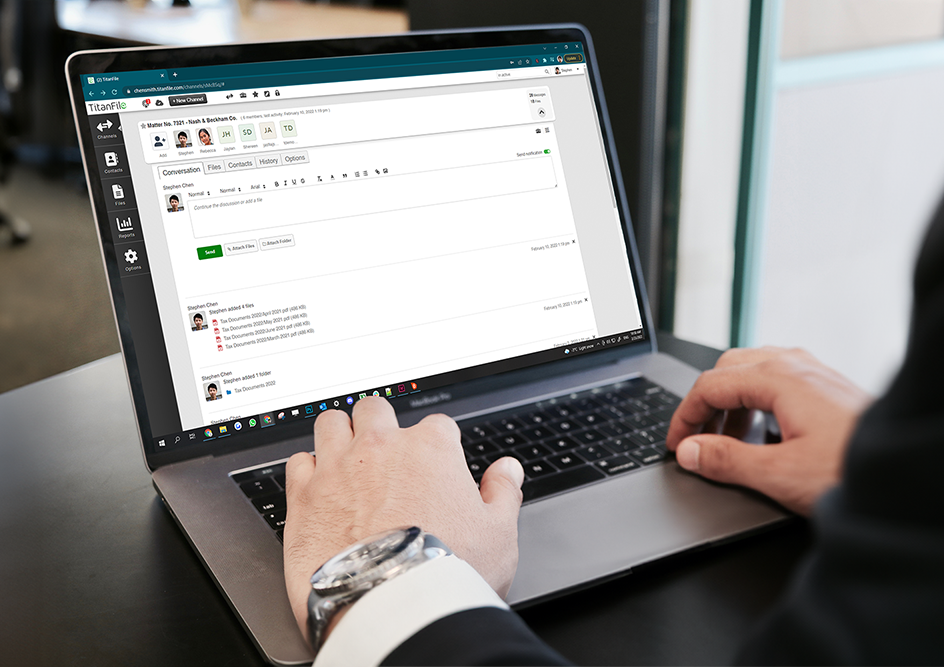
Step 1: Sign up for a free trial of TitanFile. (No credit card required.) Once you’ve signed up, check your inbox for instructions on activating and logging into the platform.
Step 2: When logged into TitanFile, begin sending files by creating a new channel. Think of a channel as a secure email. Enter a subject line.
Step 3: Add a contact by clicking the add contact icon. You can add as many contacts as you’d like. Each contact will be able to receive and send files securely to you.
Step 4: Add a file by clicking the attach file button. You can also include a message by typing it into the message box.
Step 5: When you’re ready, click Send. Your recipient will receive a link to access the files securely.
Key Features
- AES-256 encryption in transit and at rest, with TLS 1.3.
- 2FA, single sign-on, and Microsoft 365 integration.
- Unlimited file size and unlimited storage on all paid plans.
- Upload speeds up to 500 Mbps.
- Outlook and DMS integration.
- E-signature via DocuSign.
- Full audit log of every send, open, and download.
- Data residency options in the U.S., Canada, EU, Australia, and the Middle East.
- ISO 27001, ISO 27017, ISO 27018, SOC 2 Type II, HIPAA, and GDPR compliant.
Pros
- Built for compliance, not retrofitted from a consumer product.
- Easy to use; no IT setup required for end users.
- Strong audit and reporting features for compliance officers.
- Combines secure messaging, file sharing, and client portal in one tool.
Cons
- No free plan available (Free trial available for 15 days)
Read more: How to Send Large Files Via Email.

2. Kiteworks – Best for File Transfer Automation
Kiteworks (formerly Accellion) is a private content network used by enterprises with the strictest compliance needs, including defense contractors and large healthcare systems. It supports CMMC, FedRAMP Moderate, IRAP, and HIPAA workloads and offers strong DLP and ATP integrations.
Pros
- Deep compliance coverage; strong governance.
Cons
- Enterprise pricing and complex setup; overkill for SMBs.
3. Citrix ShareFile – Best for Mid-Market Professional Services
ShareFile is widely used by accounting firms and law firms. It offers client portals, e-signatures, request-list workflows, and HIPAA compliance.
Pros
- Mature client portal features; integrates with QuickBooks, CCH, and Microsoft 365.
Cons
- Storage caps on lower plans; UI dated relative to newer entrants.
4. Google Drive – Best for Internal Collaboration (Not Confidential Sharing)
Google Drive is a free service that gives you up to 15 GB of storage. However, if you need more space, paid plans are available. It’s more commonly known as a cloud storage solution.
In addition, Google Drive is part of a full collaborative office suite that includes Google Docs, Sheets, and Slides. Moreover, the user interface is simple and might already be familiar if you use other Google services.
However, Google Drive isn’t the best choice if you send documents requiring ultra-secure handling.
Pros
- Offers 15 GB of free storage for images, videos, ZIP files, and more.
- Seamlessly integrates with other Google services.
- Access your files from any device with the internet.
Cons
- Limits on individual file sizes.
- 15 GB can fill up quickly, and paid plans are needed in most cases
- It might not be secure enough for sensitive government, healthcare, or legal documents.
5. Dropbox – Best for Creative Teams
Dropbox Transfer allows sending files up to 100 GB (or 250 GB with the Replay add-on) without consuming storage. Business plans add password-protected links, link expiry, and watermarking.
Pros
- Desktop app available.
- Collaborate with shared files.
- Set expiry dates for shared links (premium plans only).
- Integration with many apps and services.
Cons
- Very limited storage for free users.
- Expensive, especially advanced plans with higher limits.
- Non-intuitive interface.
6. Microsoft OneDrive – Best for Microsoft 365 Shops
OneDrive is built into Windows 10/11 and integrates tightly with the Microsoft 365 stack. With Purview DLP, sensitivity labels, and Conditional Access, it can be configured for many regulated use cases.
Pros
- Bundled with Microsoft 365; mature governance tooling.
Cons
- Security depends heavily on configuration; default sharing settings are often too permissive.
7. Box – Best for Content-Centric Enterprises
Box is widely adopted by financial services and life sciences for content management plus secure sharing. It offers HIPAA, GxP, and FedRAMP support, watermarking, and Shield (a DLP and threat detection layer).
Pros
- Deep enterprise content management; broad compliance.
Cons
- Pricing climbs quickly with add-ons; some users find the UI complex.
8. WeTransfer – Best for Quick One-Off Creative Sends
WeTransfer lets you send up to 2 GB using the free basic plan. It’s perfect for photographers and digital creators to share files with their audience, even allowing for payments.
Pros
- Free version available without sign-up.
- Drag and drop a file; easy to use.
Cons
- The duration of keeping the files is way too short.
- No reminder for file deletion.
- Intrusive advertising.
9. Filemail – Best Free Option with Compliance Claims
Filemail is used by professionals, SMBs, and enterprises. It’s compliant with global and regional mandates like GDPR, HIPAA, ISO27001, and SOX. Plus, it has apps for all major platforms.
Pros
- Customize your download links.
- Get email notifications when files are downloaded.
- Customize your own upload page.
- Allows sending larger files up to 5 GB with the free plan.
Cons
- Clients sending you many files may have a less satisfactory experience if their upload fails.
- Even with paid plans, file storage space is limited.
10. IBM Aspera – Best for Massive File Movement
Aspera uses its FASP protocol to move terabytes of data at near-line-rate speed. It is used in media production, life sciences, and government for transfers where conventional protocols stall.
Pros
- Unmatched transfer speed at scale; HIPAA support.
Cons
- Specialized; not designed for ad-hoc business file sharing.
How The Best Large File Sharing Platforms Compare (Side-by-Side)
Use this comparison table to quickly screen platforms against the criteria that matter for regulated business workflows.
| Platform | Max File Size | Encryption | HIPAA | SOC 2 | ISO 27001 | Audit Log | Data Residency (US/CA) | Best For |
|---|---|---|---|---|---|---|---|---|
| TitanFile | Unlimited | AES-256, TLS 1.3 | Yes (BAA) | Type II | Yes | Yes | Yes | Legal, accounting, healthcare, finance, government |
| Kiteworks | Unlimited | AES-256, TLS 1.3 | Yes (BAA) | Type II | Yes | Yes | Yes | Enterprise / regulated |
| ShareFile | 100 GB | AES-256 | Yes (BAA) | Type II | Yes | Yes | Yes | Accounting & legal mid-market |
| Google Drive (Workspace) | 5 TB | AES-256 | Yes (BAA) | Type II | Yes | With Vault | Yes (Workspace) | Internal collaboration |
| Dropbox Business | 250 GB | AES-256 | Yes (BAA) | Type II | Yes | Yes | Limited | Creative teams |
| OneDrive / SharePoint | 250 GB | AES-256 | Yes (BAA) | Type II | Yes | With Purview | Yes | Microsoft 365 orgs |
| Box Business | 150 GB | AES-256 | Yes (BAA) | Type II | Yes | Yes | Yes (Box Zones) | Content-heavy enterprises |
| WeTransfer Pro | 200 GB | AES-256 | No | Limited | Limited | Basic | EU-primary | One-off creative sends |
| Filemail | Unlimited (paid) | AES-256 | Yes (paid) | Yes | Yes | Yes | Multiple regions | Free large transfers |
| IBM Aspera | Unlimited | AES-256 | Yes | Type II | Yes | Yes | Yes | High-volume / media |
Other Large File Sharing Tools
11. pCloud
pCloud lets you send large files up to 5 GB for free, no registration required. It’s great for sharing all kinds of files, but it shines with media files. The web interface includes audio and video players, so you can play shared media files directly from pCloud.
Pros
- Social media integration to back up images and video files.
- Plays media files online.
- Zero-knowledge encryption for enhanced security.
- Crypto Folder is an excellent addition.
Cons
- Encryption costs extra.
- Email support is slower to respond.

12. Send Anywhere
Send Anywhere has a well-designed, minimal interface. It’s the easiest way to share files across all your devices, even those running on different platforms.
Pros
- Good for personal use.
- Simple, minimal interface.
- Easy cross-platform file transfer.
Cons
- It is not designed for business or enterprise use.
- No backup.
- No cloud storage.
13. SendBig
SendBig is a file-sharing platform that lets you send files up to 5 GB without an account and up to 30 GB with a free account. It even offers resumable uploads, making it easy to pick up where you left off. However, it’s not suited for enterprise-level clients due to the lack of larger plans.
Pros
- Password-protect files.
- Set a maximum download per transfer.
- Defer sending transfers up to 3 days.
- Resume option (Resumable uploads in case of bad internet connection).
Cons
- The user interface looks outdated.
- Customer support takes long to respond.
- No bigger plans are available for enterprise users.
14. Hightail
Hightail (formerly YouSendIt) aims to please both file-syncing users and those focused on delivery, like DocuSign. With the free plan, you can upload files up to 100MB each and have a storage limit of 2GB.
Pros
- Range of security features.
- Visually appealing interface.
Cons
- Minor glitches every few months causing loading issues.
- Download time can be long.
- Common file types are not supported.
- Limited collaboration features
Which Secure File Sharing Tool Fits Your Industry?
The “right” platform depends on what you do every day.
Legal: eDiscovery deliveries, deposition exhibits, M&A diligence rooms, and privileged client communications. Look for legal-hold support, granular permissions, and DMS integrations (iManage, NetDocuments, Worldox).
Accounting and Tax: Tax workpapers, audit binders, year-end client documents. You need a client portal with request lists, e-signature, and PIPEDA / SOX-friendly audit logs.
Healthcare: PHI transfers between providers, labs, payers, and patients. HIPAA-grade encryption, BAA coverage, and detailed access logs are non-negotiable.
Financial Services: KYC documents, loan packages, advisor-client communications, regulator submissions. Look for FINRA / OSC-friendly retention controls and watermarking.
Government and Public Sector: Citizen data, classified workflows, FOIA / ATIP responses. Data residency in country and FedRAMP / IRAP-aligned controls matter.
How to Choose a Secure Large File Sharing Platform: 8-Point Checklist
Use this checklist when evaluating vendors:
✔ Encryption: AES-256 at rest, TLS 1.3 in transit, with optional client-side encryption.
✔ Authentication: MFA, SSO (SAML / OIDC), and SCIM provisioning.
✔ Access controls: Per-file expiry, download caps, view-only mode, watermarking.
✔ Audit trail: Immutable logs, export to SIEM, retention configurable to your regulator’s rules.
✔ Compliance: SOC 2 Type II, ISO 27001, HIPAA, GDPR, PIPEDA — and a vendor willing to sign a BAA or DPA.
✔ Data residency: Explicit U.S., Canada, or EU hosting options.
✔ Usability: Recipients should not need to install software or create an account to receive a file.
✔ Integrations: Outlook, Microsoft 365, Google Workspace, your DMS, and your e-signature tool.
The Bottom Line: How to Securely Share Large Files in 2026
If your organization regularly exchanges sensitive information, the question isn’t just “how do I send large files?” but rather, “how do I securely share large files while staying compliant?”
All these platforms are powerful in their own domains, each offering unique features to meet different needs. If you’re looking for a secure file transfer solution specially built for enterprises and small businesses, TitanFile is a must-have solution.
By adopting a secure file sharing platform like TitanFile, you eliminate file size barriers, reduce IT bottlenecks, and safeguard client trust. Ready to see how easy and secure large file sharing can be? Start your 15-day free trial today or book a personalized demo with one of our product experts to discuss your use case.
FAQs: Securely Sharing Large Files
What is the most secure way to send large files?
The most secure way is a purpose-built secure file sharing platform with AES-256 encryption, multi-factor authentication, granular access controls, audit logs, and compliance certifications (SOC 2 Type II, HIPAA, GDPR, PIPEDA). Email, USB drives, and free cloud links should be avoided for sensitive business data.
Can I share large files via email securely?
Standard email is not secure or large-file friendly. Gmail and Outlook cap attachments at 25 MB and do not provide end-to-end encryption. Instead, to send large files securely from email, use an encrypted email plug-in or a secure file sharing platform with Outlook integration such as TitanFile, which replaces attachments with a secure link.
What’s the difference between cloud drives and secure file sharing platforms?
Cloud storage tools like Google Drive, Dropbox, and OneDrive are optimized for personal storage and team collaboration. Secure file sharing platforms are built for confidential, often regulated, exchanges with people outside your organization. They add compliance certifications, recipient verification, audit logs, watermarking, and expiry controls that consumer cloud storage typically does not include by default.
How do I send large files securely to clients?
Use a secure file sharing platform with a client portal. Specifically, send recipients a secure link that requires MFA or email verification. Then, set an expiry, restrict download counts, and enable audit logs so you can prove delivery and access in the event of a compliance audit.
What is the largest file you can email?
In general, most email providers cap attachments at 20–25 MB. For example, Gmail and Outlook are both 25 MB. Some on-premises servers allow up to 50 MB. Anything larger should be sent as a secure link from a file sharing platform.
Is Google Drive HIPAA compliant?
Google Drive can be HIPAA compliant when it is used as part of Google Workspace with a signed Business Associate Agreement and properly configured access, sharing, and audit settings. The consumer (free) tier of Google Drive is not HIPAA compliant.
Is secure file sharing only for large enterprises?
No. Solo law firms, small accounting practices, regional healthcare clinics, and provincial government departments all use platforms like TitanFile. Modern pricing models make enterprise-grade security accessible to small teams.
What compliance certifications should I look for?
At a minimum: SOC 2 Type II and ISO 27001. Add HIPAA (healthcare), GDPR (any EU data subjects), PIPEDA (Canadian personal information), FedRAMP (U.S. government), and CJIS (law enforcement) based on your industry.